Use Add to calendar for action dates, CSV for crop-by-crop analysis, and PDF for a printable snapshot. A calendar import is a copy of the plan at export time; it does not stay synchronized with Seed Window.
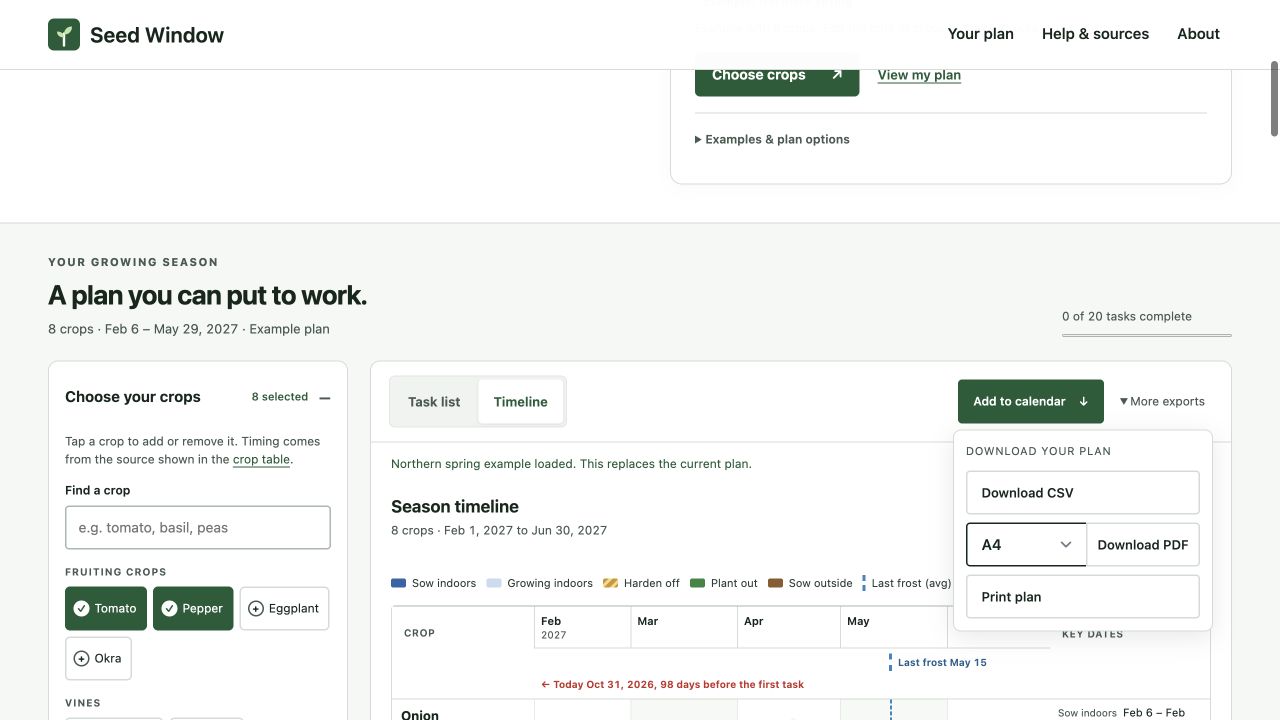
Eight crops do not mean eight calendar events
The Northern spring example has eight crops: six transplanted crops and two direct-sown crops. Each transplant produces three actions—sow, begin hardening and plant out—while each direct-sown crop produces one. That gives 6 × 3 + 2 = 20 events. The crop CSV has eight data rows instead. This count is a useful check before blaming an export for “extra” entries.
We exported the example and inspected the file: it contains 20 VEVENT records. Marking one task done excludes that action from the next calendar export, leaving 19. Download the 20-event example or the one-task-completed version to compare. Both are synthetic examples, not your personal garden plan.
An event marks the first day of a window
The tomato sowing envelope is April 10–24, 2027, but the exported all-day event starts April 10. Its description retains the whole window. The file does not create fifteen repeated sowing jobs or a multi-day appointment covering the entire envelope.
DTSTART;VALUE=DATE:20270410
DTEND;VALUE=DATE:20270411
SUMMARY:Sow Tomato indoors
The next-day DTEND is intentional: RFC 5545’s event definition makes the end non-inclusive. April 11 is therefore the boundary of the one-day April 10 event. The file contains no embedded VALARM, so downloading it alone does not establish a notification. Configure any desired alert in your calendar application.
Import the ICS into Google Calendar
- Finish your date and crop choices in the planting workspace, then click Add to calendar.
- On a computer, open Google Calendar. In Settings, use Import & export, select the .ics file, and choose the destination calendar.
- Consider a separate garden calendar, so you can distinguish this imported batch from appointments and later versions.
- Review one sowing event’s description and its date. Add an alert if you want one; do not assume the all-day event will notify you.
These menu steps follow Google’s import instructions. We verified the generated file and download, not a live import into a reader’s Google account. No Google connection or account access is required by Seed Window itself.
Handle revised plans deliberately
Changing the frost date later will not update events already imported. Task identifiers include an action date, so moving a task may produce a different identifier. Do not rely on a second import to replace everything correctly or assume that every calendar app deduplicates files the same way.
Use Plan options & backup → Download backup for a portable JSON copy of your saved plans. Copying a named plan lets you compare a proposed revision without replacing the original. Keep the earlier calendar export as a record, compare the revision, and use your calendar app’s normal controls to remove or separate the obsolete batch before importing a replacement. If you already sowed seeds, preserve that actual date in your notes rather than moving it to match a newly generated plan. The hardening guide explains the same plan-versus-history distinction.
Choose the right format for the next job
| Format | Best use | Important boundary |
|---|---|---|
| ICS | Open tasks on action dates | First-day events; no live sync or embedded alert |
| CSV | One crop per row, with source and date columns | This is not Google Calendar’s CSV schema; use ICS to import events |
| A4 or US Letter planning snapshot | Full plan, not a live completion ledger |
Under More exports, choose the matching paper size before downloading PDF. The example files are A4 and US Letter. The current PDF lists the full plan even when a task is checked in the browser. We inspected vector-file dimensions and rendered output; a physical printer test is not claimed.
Full calendar years also matter. A hypothetical December 20, 2026 frost input with Okra produces an outdoor window of January 3–17, 2027. The cross-year example CSV keeps those years explicit. Avoid reusing a dated export next year without recalculating; the tool supplies calendar arithmetic, not an annually recurring cultivation programme.
About this report
Written by the team that builds Seed Window. Numerical examples use the published planner rules and hypothetical inputs. Interface screenshots were captured on 31 October 2026 with synthetic plans; the later Saved plans and backup controls are not shown. These are calculation and workflow checks, not crop-growing or yield trials; no independent horticultural review is claimed. Source links beside the relevant claims let you inspect their scope.
Reproduce the examples and inspect the evidenceMake the dates your own
Look up your NOAA frost date by ZIP code, choose only the crops you grow, and check the resulting task windows.
Find your frost date and plan →